Requirements:
Windows 10 or higher.
Total battle game launcher set to English and window mode. (Not fullscreen, change it in the game settings) (free download on there website) you need to login to see it!!
1920x1080p screen or 1440p
32bit ODBC MySQL driver 8.0. (The ODBC Connector. May require the c++ redist)
32bit Irfanview tool download it easy on Ninite.com or from the official site.
#All requirements are added to the zip
Installation:
Download the zip and unpack it somewhere nice. For easy access I created a shortcut on the desktop.
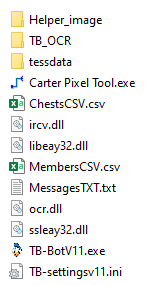
<<< This is the unpacked folder.
To make a shortcut right click the TB-BotVxx.exe and go to “copy”, “add shortcut to desktop”
First run:
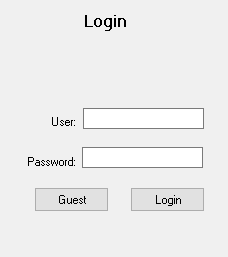
Login to the bot or click the Guest button.
As Guest you can test the bot and see the results on the website in the test clan.
After login you can run the bot without any extra settings needed. To register the chests online, make sure to check if DB-active is on.
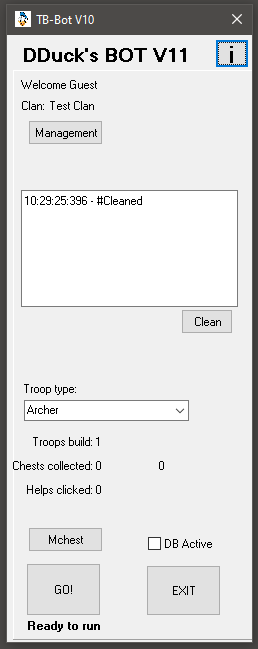
You can start it in two divergent modes.
Click Mchests to do a one time chests collection.
Nice if you use it next to your main account.
It will collect all chests and finish.
The next option is to set a troop type.
Archer is the 1st column and rider the 3th.
It depends on your research level which troops it actual get trained. Or set it to None.
Hit Go! and it will continue to train troops, click help requests, and collect chests 24/7. Hit pause or press CTRL + Numpad5 to temporary stop it. Use Exit, or CTRL+ Numpad1 to stop it.
Open Management to adjust settings and check member names. On first run you will see one member already there, Its fine, it will not show online and probably auto delete itself.
Management:
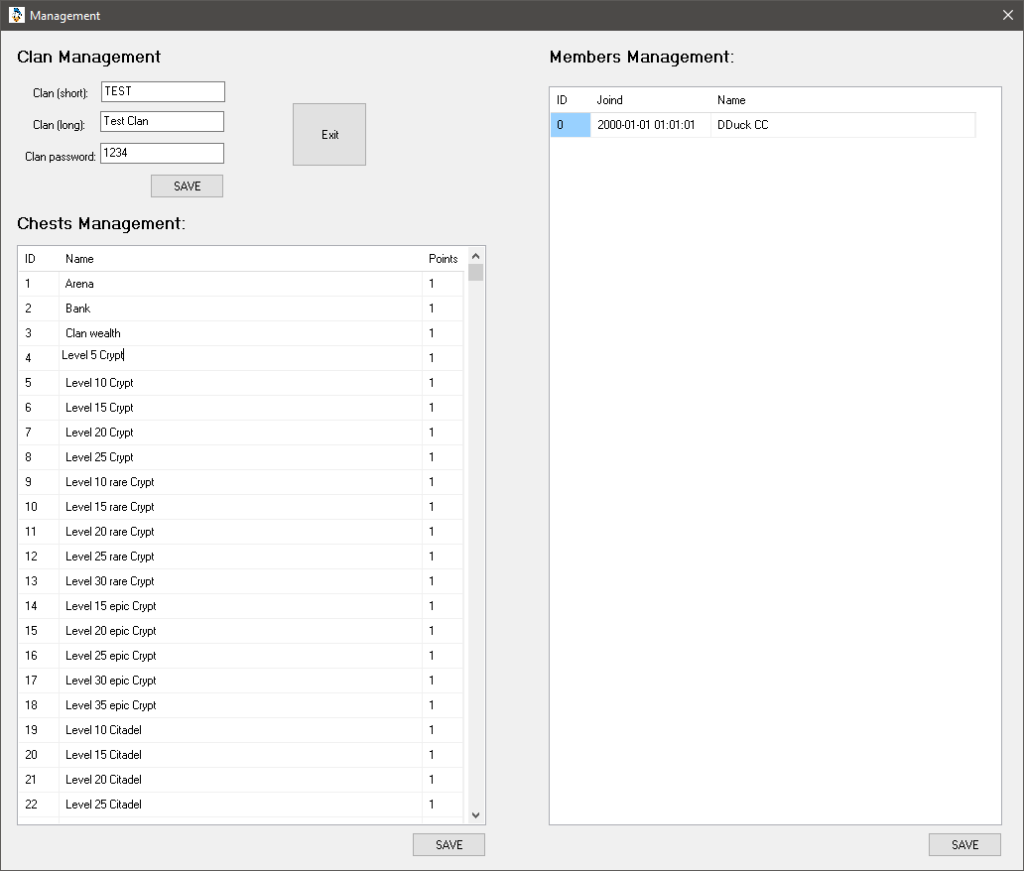
In the management dialog you find 3 sections.
In the 1st you can set clan details. The short name is locked, to change it you need to send a request to me. The long clan name as displayed online, and the password members use to logon to the website and see there counts, can be changes at will.
In the 2th you can manage chests types, Rename them, combine them and assign points. Rename them if OCR made a mistake, and combine them by giving them the same ID and name. (It will look like a dubbel row and unnecessary, but it will have two divergent OCRnames.) You will not see the column OCRnames, but its there, trust me. Warning, If you change a id for a combined chests type, you need to do it on all lines. Keep them in sync.
Example: you already have a “Level 5 Crypt” in the list with 5 points assigned to it, and ID 4. Then you get a message in the bot that it found a new chests type “Level 5 Crupt” It made a reading mistake, and added a new chests type with ID 25.
To correct this, you change the ID to 4, and the name to “Level 5 Crypt”
ID Name points (hidden)OCRname
4 “Level 5 Crypt” 5 “Level 5 Crypt”
4 “Level 5 Crypt” 5 “Level 5 Crupt”
On saving it will update the online database and set ID 25 to 4, Change the name and update it points. Next time it finds “Level 5 Crupt” it will add it as “Level 5 Crypt” with ID 4 and 5 points. Its up to you to keep the points and name’s in sync.
You can change the assigned points at any time. It will update the online database history too.
In the 3th you can manage the members. It will work the same as whit the chests types. You can rename them and combine them. Warning, If you change a id for a combined member, you need to do it on all lines. Keep them in sync.
Here you will find the joined date too. Its just for your info, and not used in the online database.
Deleting Members or chests types:
In normal circumstance you will not have to delete any chests types. If for some reason you need too, please contact me.
When members leave clan, you may want to clean the list. To do so, set the members ID to 0 and save the list. Warning, this will delete all chests history for that members ID. So do not use it on a combined username unless you want to really delete all the data from that member. this can take some time.
Report Extraction:
press “load rep” and select an Rep file. (there are 2 in the bots folder)
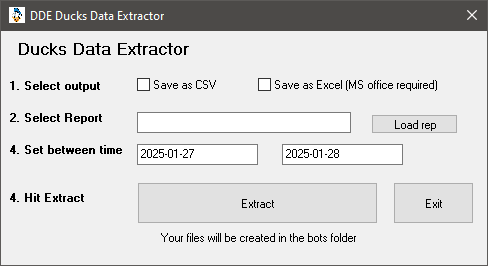
The default will generate a report like on the website but you can set a date.
The single chests is a bit more tricky… You need to change the name first.
Look at your Chests types in the bot manager and find the ID for the type you want to report.
For example: If you want a report on all users who acquired Ferin chests and your ID is 64, change the number to 64.
So renaming the file name SingleChests_4.rep TO SingleChests_64.rep
You can make copy’s of the file and use it on other ID’s
As you can see there is a between date option in the GUI too, You do need to set a date in yyyy-mm-dd for the chests to be counted.
Donators:
Member who made a donation to help me pay the website bill get a little extra.
Thank you very much!!!
Auto Carter: Set carter as your first captain, select common or epic chests in the watchtower and there level, than hit the button.
You will be asked how many you want, and if you want to use speedups.
Shield renew: Sorry, I deleted this function as it was to unpredictable.
Caravan: In game go to the map and find receiving city. start auto caravan, select amount, use speedups?, auto set screen to 125% if its not already, send mouse instructions… place mouse on city, hit enter to close message and the bot will start caravaning.
Tip, set a set of captains that caravan the same amount, send one max caravan manually and look in journal to see amount after TAX. if you can carry 7.2m and need to pay 500m use 500/7.2=69,45 =70 caravans (minus the one you already send)(edited)
Daily’s: Set this active if you have VIP running. It will collect the daily jobs for you.
Duck Systems Cryptor: